Choose stationery for Windows Mail messages


With Windows Mail, you can enhance the appearance of your e‑mail messages using stationery that features custom backgrounds, fonts, and colors. A variety of stationery designs are included for you to choose from.
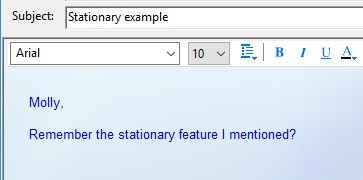
An e‑mail message created using stationery
To choose from the full list of stationery
2. Click the Message menu, point to New Message Using, and then click Select Stationery.
3. In the Select Stationery dialog box, click the stationery design that you want to use*, and then click OK. A new message window opens and displays the stationery you selected.
Notes
To choose recently used stationery by name
2. Click the Message menu, point to New Message Using, and then click the name of the stationery design that you want to use. A new message window opens and displays the stationery you selected.
Tip
See also